
YouTube Video Stats Checker
Check public statistics for any YouTube video or Shorts URL. Paste a video link to view video views, likes, comments, duration, publish date, channel, category ID, thumbnail, and engagement rate.
Check Video Stats
The user only needs to paste a YouTube URL.
Video Details
Stats Breakdown
| Metric | Value |
|---|---|
| No stats checked yet. | |
Some metrics may be hidden or unavailable depending on the video's privacy settings, disabled comments, hidden like counts, or API response.
Public YouTube Data API values only · No login and no channel access · Private analytics such as watch time and retention are not available from a link
What Is a YouTube Video Stats Checker?
A YouTube video stats checker is a tool that fetches public video statistics and metadata from a YouTube video. It helps you understand how a video is performing by showing key numbers such as views, likes, comments, duration, publish date, and engagement rate.
Instead of checking each detail manually, you can paste a video URL and get a clean performance summary in one place.
How to Check YouTube Video Stats
- Copy the URL of a YouTube video or Shorts video.
- Paste the URL into the YouTube Video Stats Checker.
- Click the Check Stats button.
- Review views, likes, comments, duration, and engagement rate.
- Copy the stats or download them as a CSV file.
What Video Statistics Can This Tool Show?
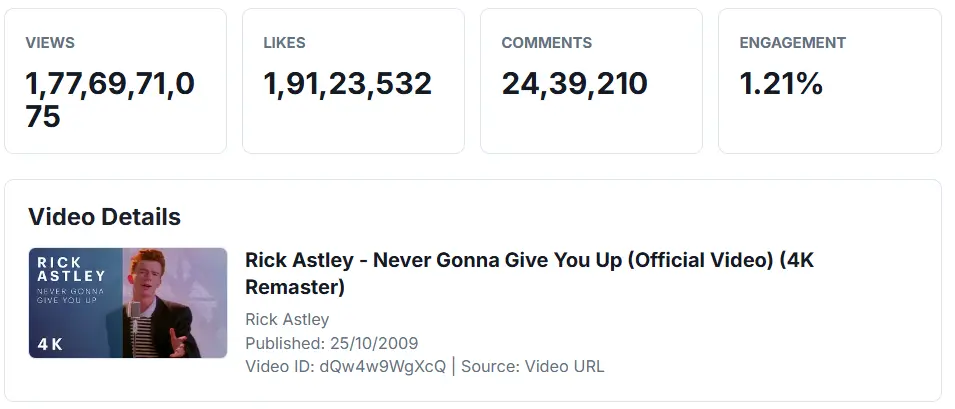
This YouTube video statistics checker can display useful public video data, including:
- Video views
- Like count
- Comment count
- Engagement rate
- Video duration
- Publish date
- Video title
- Channel name
- Channel ID
- Category ID
- Thumbnail
- Caption availability
How Is YouTube Engagement Rate Calculated?
This tool estimates YouTube video engagement rate by comparing likes and comments with total views.
For example, if a video has 10,000 views, 500 likes, and 50 comments, the engagement rate is:
Engagement rate helps you understand whether viewers are interacting with the video, not just watching it.
Why Check YouTube Video Stats?
Checking YouTube video stats can help you understand what kind of content performs well. Creators and marketers can use video statistics to compare videos, study competitors, review engagement, and plan better titles, thumbnails, and topics.
A video with fewer views but strong engagement may be more valuable than a video with many passive views. That is why views, likes, comments, and engagement rate should be reviewed together.
YouTube Views vs Likes vs Comments
YouTube views show how many times a video has been watched. Likes show positive viewer response. Comments show deeper interaction because viewers took extra time to respond.
When these numbers are viewed together, they give a better picture of video performance than views alone.
More YouTube Tools
- YouTube Tag Extractor
- Youtube Thumbnail Downloader
- YouTube Title Generator
- YouTube Comment Picker
- YouTube Money Calculator
Can I Check YouTube Shorts Stats?
Yes. This YouTube Shorts stats checker supports Shorts URLs when the video data is available through YouTube. Paste a Shorts link, and the tool can fetch public stats such as views, likes, comments, duration, and publish date.
How to Check a YouTube Video's Length
Paste the video URL and click Check Stats. The video length appears in the Stats Breakdown table next to Duration, written the way you would read it out loud. A three and a half minute video shows as 3:34. Anything over an hour picks up an hours column, so 1:02:15 means one hour, two minutes and fifteen seconds.
You do not have to open the video to find out how long it is. That matters when you are deciding whether a tutorial is worth your next twenty minutes, when you are checking how long a competitor's videos usually run before you script your own, or when you need the exact running time of a video you are about to cite or embed.
Why some tools show PT3M34S instead of 3:34
YouTube does not store video length as minutes and seconds. It stores it in a format called ISO 8601, which reads as a string like PT3M34S. The PT marks the start of a time value, and each letter after it is a unit. Tools that pass the raw response straight through show you that string and leave you to work it out.
This checker converts it for you. If you run into the raw format elsewhere, here is how it maps:
| What YouTube returns | What it means | How it reads |
|---|---|---|
PT45S | 45 seconds | 0:45 |
PT3M34S | 3 minutes, 34 seconds | 3:34 |
PT12M | 12 minutes exactly | 12:00 |
PT1H2M15S | 1 hour, 2 minutes, 15 seconds | 1:02:15 |
PT2H | 2 hours exactly | 2:00:00 |
Missing units simply mean a value of zero. PT12M has no seconds component because the video ends on a whole minute, not because the data is incomplete.
When the length looks wrong
A live stream that is still running can report a duration of zero, because the video has no end yet. Check it again once the stream has finished and been processed. Premieres behave the same way before they go live. For Shorts, the length you see is the real file length, which is why a Short can come back as 0:58 rather than a round minute.
Check YouTube Video Stats by Link
You can check YouTube video stats by link for any public video, including videos you did not upload. There is no login, no channel connection and no browser extension. Copy the link from the address bar or the Share button, paste it into the box above, and the stats load from the link alone.
This is the part people usually want confirmed before they start: checking stats by link works on other people's videos. You are reading the same public numbers that anyone visiting the video page can see, pulled together in one table instead of scattered around the player.
Which links work
Every normal way of copying a YouTube link works, including the shortened one the Share button gives you and the /shorts/ link you get from the Shorts player. If you only have the eleven character video ID, you can paste that on its own. The full list of accepted formats is in the next section.
What a link can and cannot tell you
This is worth being straight about, because it is the difference between public stats and private analytics, and most tools blur it.
| Available from a link | Not available from a link |
|---|---|
| Views, likes, comment count | Watch time and average view duration |
| Engagement rate calculated from those | Audience retention graph |
| Length, publish date, captions | Impressions and impression click through rate |
| Channel name and channel ID | Traffic sources and search terms |
| Thumbnail, definition, dimension | Subscribers gained, revenue, demographics |
The column on the right is private to whoever owns the channel and only appears in their YouTube Studio. No tool can read it from a link, and any tool claiming otherwise is either estimating or asking you to hand over account access. If a video has likes hidden or comments turned off, those numbers will not come through either, because the creator has chosen not to publish them.
Export and Download YouTube Video Stats
Once the stats have loaded, two buttons sit under the Stats Breakdown table. Copy Stats puts the whole table on your clipboard as plain text, ready to paste into a message, a doc or a ticket. Download CSV saves the same data as a spreadsheet file.
Use Copy Stats when you are sending one video's numbers to someone. Use the CSV download when the numbers are going into a sheet you will sort, filter or come back to later.
What is in the CSV file
The download is a plain CSV with one row per metric, so it opens in Google Sheets, Excel and Numbers without any import step. Every field from the on screen table comes through:
| Field | Example value |
|---|---|
| Views | 1,820,540,120 |
| Likes | 19,423,869 |
| Comments | 2,457,603 |
| Engagement rate | 1.20% |
| Duration | 3:34 |
| Published date | 10/25/2009 |
| Channel and channel ID | Rick Astley, UCuAXFkgsw1L7xaCfnd5JJOw |
| Category ID, definition, dimension, captions | 10, HD, 2d, Available |
Building a comparison sheet
There is no bulk upload here, but there is a workable way to compare several videos. Check the first video, download the CSV, then check the next one and download again. Each file covers one video, so paste them side by side in a single sheet and you have a comparison you can sort by views or by engagement rate.
Doing this across five or ten videos from the same channel is usually more revealing than looking at any one of them. Patterns show up that a single video hides, such as whether the videos that pick up the most views are also the ones people actually engage with.
The numbers are read at the moment you click Check Stats, so a CSV is a snapshot of that moment rather than a live feed. If you are tracking a video over time, download it again on the same day each week and keep the dates with the rows. Two snapshots a week apart tell you the growth rate, which a single download never can.
Supported YouTube URL Formats
This tool supports several YouTube URL formats:
- Regular YouTube video URLs
- YouTube Shorts URLs
- youtu.be short links
- YouTube embed URLs
- YouTube live URLs
- Direct YouTube video IDs
Why Are Some YouTube Stats Missing?
Some stats may be unavailable because of YouTube settings or API limits. For example, likes can be hidden, comments may be disabled, or a video may be private, deleted, age-restricted, or unavailable in some regions.
If a metric does not appear, it does not always mean the tool is broken. It may simply mean YouTube did not return that specific data.
Who Can Use This YouTube Video Stats Checker?
This tool can be useful for:
- YouTube creators checking video performance
- Marketers researching competitor videos
- SEO professionals analyzing video metadata
- Brands reviewing campaign videos
- Students and researchers studying video engagement
- Content teams comparing multiple video ideas
Frequently Asked Questions
What is a YouTube video stats checker?
A YouTube video stats checker is a tool that shows public statistics and metadata for a YouTube video, such as views, likes, comments, duration, publish date, and engagement rate.
How do I check YouTube video statistics?
Paste a YouTube video URL into the tool and click Check Stats. The tool will fetch available public video statistics and display them in a readable format.
Can I check YouTube Shorts stats?
Yes. You can paste a YouTube Shorts URL to check available public statistics for that Shorts video.
How do you calculate YouTube engagement rate?
YouTube engagement rate can be calculated by adding likes and comments, dividing by total views, and multiplying by 100. Engagement Rate = ((Likes + Comments) / Views) × 100
Why are likes hidden for some YouTube videos?
Some videos may not return like count data because of YouTube settings, API behavior, or availability restrictions.
Why are comments unavailable for some videos?
Comments may be disabled by the creator, restricted by YouTube, or unavailable through the API for certain videos.
Can I download YouTube video stats?
Yes. The tool lets you download the checked video statistics as a CSV file.
Do I need to log in to check video stats?
No. Users only need to paste a YouTube video URL. The tool checks public video statistics when available.
Are YouTube video stats always real-time?
YouTube stats may not always update instantly. View counts, likes, and comments can take time to refresh or may differ slightly across YouTube surfaces.
Can I use this for competitor video research?
Yes. You can use this tool to review public stats from competitor videos and compare views, likes, comments, publish dates, and engagement rates.

Written & verified by
B.Tech Computer Science · 8 years in web development & SEO · Bhilwara, India
About ·
LinkedIn ·
Report an error